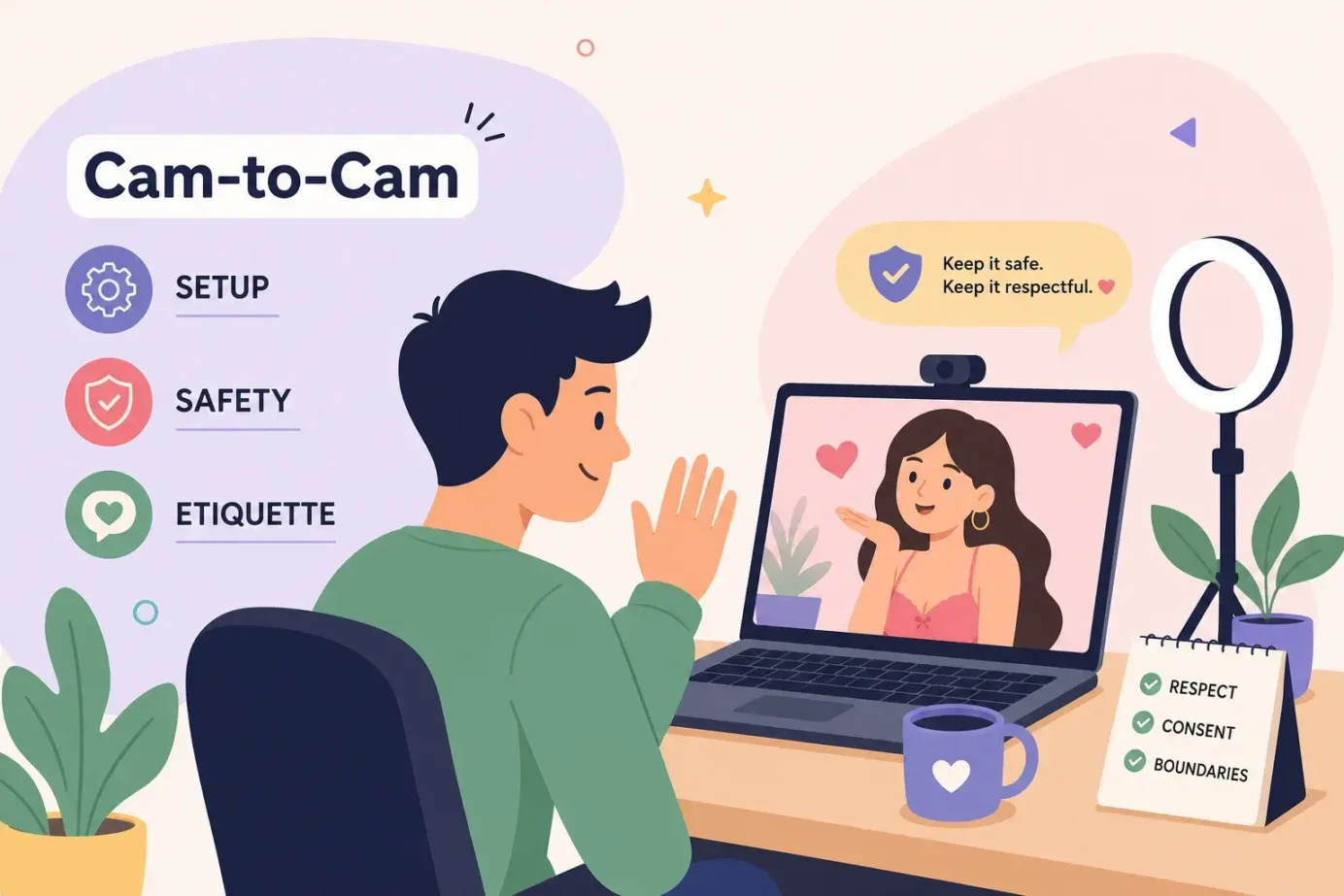
Cam-to-Cam with a Model: Setup, Safety, and Etiquette
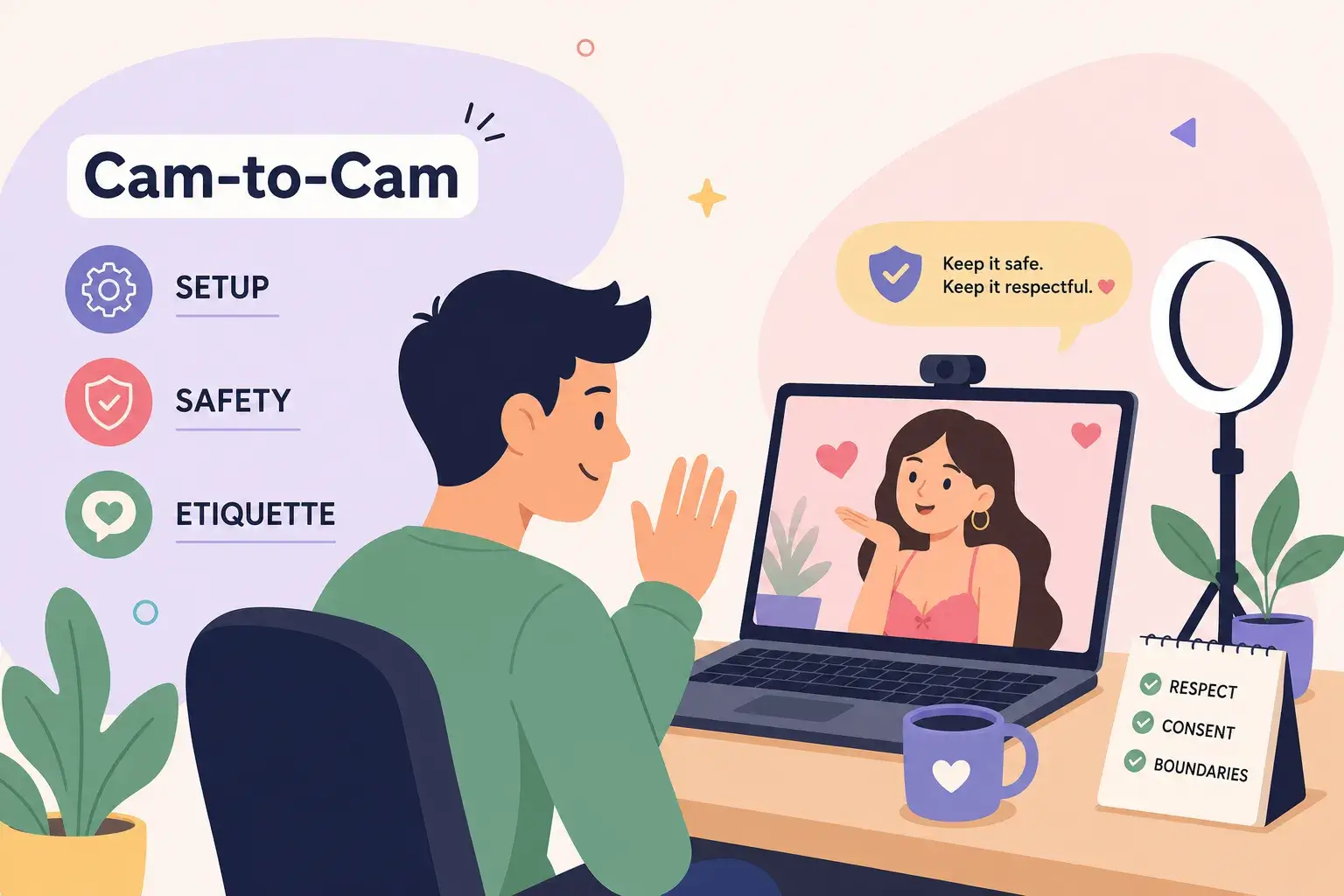
If you’re asking what you need to do to cam-to-cam with a model, the answer breaks down into four areas: the right gear, a funded account on a platform that supports it, browser permissions set correctly, and a clear understanding of basic etiquette. Most first-timers assume a two-way webcam session is plug-and-play, open a browser, click a button, and you’re live. In practice, a single blocked browser permission or an underfunded token balance can kill the session before it ever starts.
Cam-to-cam (also written as cam2cam or C2C) is a two-way video and audio exchange between you and a live model, giving both of you a real-time, mutual connection that’s nothing like passive video consumption. It’s more personal, more interactive, and when the setup is right, genuinely impressive. This guide walks through everything you need to go live with confidence: the gear that actually matters, account and payment setup, browser permissions (the part that trips up the most people), privacy controls, and the etiquette that determines whether a session is great or awkward. Platforms like Stripchat and Chaturbate both support C2C natively, and both are accessible through WebcamSex.Link’s aggregated browse, so you can scout models without jumping between multiple sign-ins. But the setup work still needs to happen on your end first.
What You Need to Cam-to-Cam with a Model: Hardware First
You don’t need a studio rig to do this well, but a few pieces of gear make the difference between a smooth session and one where the model is squinting at a pixelated blur. Getting this sorted once means every session after runs cleanly.
Webcam and microphone: what actually works
A built-in laptop webcam is a functional starting point, but an external USB webcam at 720p minimum (1080p preferred) gives a noticeably sharper image that models respond better to. Your video quality directly affects the energy of the session: a clear, well-lit image signals to the model that you’re engaged and set up properly, which tends to get you better interaction in return. For audio, a USB microphone or a headset with a mic eliminates the echo and muffling that plagues built-in laptop speakers during live sessions.
Internet speed: the number to know
For a stable two-way HD session, target at least 3 Mbps upload speed, with 5 Mbps giving you comfortable headroom if other devices are active on your network. You can check your upload speed in under a minute at fast.com or speedtest.net before you start. If your Wi-Fi connection is inconsistent, a wired ethernet connection is significantly more reliable for video-heavy sessions where dropouts are immediately obvious to both parties.
Lighting: the webcam session setup most viewers skip
Lighting has more impact on your image quality than your webcam resolution. A soft, front-facing light source, a desk lamp angled at your face or a window in front of you, improves your image dramatically without any equipment cost. The mistake most viewers make is sitting with a bright window or light behind them, which silhouettes their face on the model’s screen and makes the feed nearly unwatchable. No ring light required; a lamp that faces you does the job.
Account Setup and Which Platforms Support Cam-to-Cam
The path to a working C2C session runs through a registered account on a platform that supports it. This is where knowing what’s required upfront saves you from hitting walls mid-session.
What registration and age verification actually involve
All major platforms require a free registered account before cam-to-cam features are accessible. Signing up typically involves a username, password, and date of birth to confirm you meet the adult-only access requirement. If you plan to appear on camera yourself, platforms like Chaturbate require a government-issued photo ID plus a live selfie for anyone broadcasting, which covers you as a cam-to-cam participant. Using a separate email address and a pseudonym during signup adds a useful privacy layer from the start.
Finding a C2C-ready model without juggling multiple sign-ups
Not every model on a platform enables two-way sessions, so checking before you spend tokens matters. Look for tags like “C2C enabled,” “cam2cam,” or “two-way” in a model’s room description or on their profile page. If you want to browse models across Stripchat and Chaturbate without signing into each site separately to compare options, WebcamSex.Link aggregates both platforms in a single browsing interface, so you can identify C2C-ready models and review profiles before committing to any one platform or session.
How tokens and private show rates work
Cam-to-cam sessions run inside a private show billed per minute in platform tokens. Typical private show rates fall between 30 and 60 tokens per minute on most platforms, with popular or high-demand models charging 80 to 120 tokens per minute. Buy a slightly larger token bundle than you estimate you’ll need, because running out mid-session ends it immediately and there’s no graceful pause while you top up. Token pricing varies by bundle size, typically landing between $0.08 and $0.12 per token.
Browser Permissions: How to Cam-to-Cam with a Model Without Tech Headaches
A blocked browser permission is the single most common reason a first cam-to-cam attempt fails. The fix is straightforward once you know where to look, but finding it under time pressure while a session is waiting is genuinely frustrating. Handle this before you enter any private room.
Granting camera and microphone access in your browser
When the platform requests camera and microphone access, the browser displays a prompt asking you to Allow or Block. Click Allow, and do not dismiss the prompt without choosing. In Chrome, if you already dismissed it or blocked it previously, go to Settings, then Privacy and security, then Site settings, and find Camera and Microphone to update each one to Allow for the site. In Firefox, the same permission prompt appears on first visit; if you dismissed it, click the lock icon in the address bar and update the permissions manually, then reload the page.
Checking your webcam before the session starts
Open your operating system’s built-in camera app and confirm the webcam displays a live feed before you ever load the cam site. If it works there but not in the browser, the issue is almost always a browser permission or a conflict with another app. Make sure Zoom, Teams, Discord, or any other video application is fully closed, since browsers cannot access a webcam that another app is currently holding. On Windows, Device Manager shows whether your webcam driver is functioning correctly; on Mac, System Preferences under Security and Privacy lists which apps have camera access.
Why your camera still isn’t detected (and how to fix it)
If you’ve granted permissions and closed other video apps but the camera still won’t show, work through this sequence: close all video applications, refresh the browser page, re-grant the permission when prompted, and then reload. If that doesn’t resolve it, try a different browser; Chrome handles webcam permissions most reliably across cam platforms. An outdated webcam driver is worth checking on Windows if the problem persists after switching browsers, updating it through Device Manager often resolves detection issues that nothing else fixes.
How to Launch and Navigate a Private Two-Way Session
Once your gear and accounts are in order, the session flow is straightforward. Knowing the sequence in advance removes the hesitation that wastes tokens while you figure it out.
Finding the right model and entering their room
Filter the platform by “cam-to-cam available” or “private show” tags to narrow your options. Before entering a room, spend a minute reviewing the model’s profile and tip menu so you understand what they offer and at what rate. Starting in the public room briefly before going private lets you get a feel for the model’s style and energy before committing your tokens to a one-on-one session.
Starting C2C and enabling two-way video
Enter private show mode through the “Go Private” or “Start Private” button, which is labeled differently depending on the platform. Once inside, the C2C or cam2cam button typically appears in the video controls panel. The browser may prompt for camera permission again at this stage if the permission wasn’t granted site-wide; click Allow when it does. If the button isn’t visible, check the model’s room settings or tip menu, since some models require a token unlock to activate two-way video.
What happens once the session goes live
The model sees your video feed in a small inset window on their interface, and audio runs two-way in real time. Your token balance is a countdown: the session runs per-minute, and most platforms show a low-balance warning before it hits zero. Top up before the balance runs out if you want to continue, because the session ends the moment tokens are depleted, and there’s no grace period to add more mid-stream.
Privacy and Safety Before You Go on Camera
Going on camera means the model sees your environment, not just your face. A few minutes of preparation before the session prevents unintentional oversharing that you can’t take back.
Controlling your background and identity exposure
Clear the area behind you of anything identifying before you go live: mail with your name and address, ID cards, diplomas, family photos, work materials, or street signs visible through windows all give away more than you intend. A blank wall or a neutral backdrop works perfectly well. Decide in advance whether you want your face in frame at all. Keeping your face out of the shot entirely is a common and completely valid choice that changes nothing about the session quality.
Understanding recording risk
Most platforms prohibit users from recording sessions, but a second device pointed at the screen bypasses that restriction technically. Treat every session as potentially recordable and share only what you’d be comfortable with in a worst-case scenario. Know where the platform’s report or abuse link is before the session starts, not while something is happening, having it ready means you can respond quickly if needed.
VPN and private browsing: what they actually do
A VPN masks your IP address from the platform and third parties but does not make you anonymous to the platform itself, since you’re still logged into an account. Private or incognito browsing prevents your local browser history from being saved but has no effect on what the platform logs server-side. Both are reasonable additions to your setup, but neither replaces the background and identity controls described above. They layer on top of those controls, not substitute for them.
Webcam Etiquette: What Models Genuinely Expect
A good session is a two-way dynamic, and how you show up as a viewer directly affects what you get out of it. The etiquette here isn’t about politeness for its own sake, it’s about practical session quality and your ability to return to models you enjoy.
Making requests clearly and respectfully
Check the model’s tip menu and room rules before asking for anything; most models list exactly what they offer and at what token amount, which removes guesswork from both sides. When you want to make a request, state it simply and politely: “Would you be open to X?” works far better than a demand or a vague hint. Specific, calm requests get better responses than pressure or entitlement, and models genuinely appreciate viewers who’ve read the room before asking.
Respecting a “no” without negotiation
If a model declines a request, accept it once and move on without repeating or bargaining. Repeating or escalating after a refusal is treated as harassment on every major platform, and models can end the session for boundary violations immediately, which means your tokens are gone and the show is over. Respecting limits consistently also builds rapport with models you return to regularly, since they do notice and remember viewers who treat them well.
Small habits that make sessions noticeably better
Read the room rules posted in the model’s chat before asking for anything, even if you’ve been to that room before. Check in verbally during the session rather than assuming everything is fine; a simple “Is this okay?” goes a long way. Tipping when you enjoy the session signals that you’re a respectful viewer, and models remember that, which pays off in the quality of interaction during future sessions.
You’re Ready to Go Live
Now you know exactly what you need to do to cam-to-cam with a model: gear sorted, account funded with enough tokens, browser permissions granted, and background cleared of anything identifying. Getting each of those right once means every session after runs without friction.
The etiquette section isn’t optional or soft advice. It directly determines the quality and length of what you experience. Models who feel respected bring more energy, respond to requests more openly, and are worth returning to regularly. That dynamic is what separates a frustrating session from a genuinely good one.
Both Stripchat and Chaturbate support cam-to-cam natively, and both are browsable through WebcamSex.Link without needing separate logins to compare options. Once your setup is done, finding a C2C-ready model takes minutes. Run a quick camera test, check your token balance, browse available models on WebcamSex.Link, and go live.
Frequently Asked Questions
What hardware do I need to cam-to-cam with a model?
At minimum, you need a webcam (720p or higher), a microphone or headset, and an upload speed of at least 3 Mbps. An external USB webcam and wired ethernet connection will give you the best results, but a decent laptop setup with solid internet is enough to start.
Do I need to verify my identity to participate in cam-to-cam?
Creating a viewer account requires only a username, email, and date of birth confirmation. However, if you plan to broadcast yourself on platforms like Chaturbate, a government-issued photo ID is required for anyone appearing on camera.
How many tokens should I buy before a cam-to-cam session?
Private show rates typically run 30 to 60 tokens per minute for most models, with higher-demand performers charging 80 to 120 per minute. For a 20-minute session at a mid-range rate, 1,000 to 1,200 tokens gives you comfortable headroom without cutting the session short.
Why isn’t my camera being detected during a cam-to-cam session?
The most common causes are a blocked browser permission, a conflicting app holding the webcam (Zoom, Teams, Discord), or an outdated driver on Windows. Close all video apps, refresh the page, re-grant the camera permission, and reload. If the issue persists, switch to Chrome and update your webcam driver through Device Manager.
Is cam-to-cam private, or can other viewers see my feed?
In a standard private show, only the model sees your video feed. It is not visible to other viewers in public chat rooms. That said, treat every session as potentially recordable and control your background and identity exposure accordingly.